Captain Ratatype

Brilliant news: we've put together a collection of tips to help you capture your screen without losing track of the image afterwards.
How to Capture Your Screen on Mac
If you're working on an Apple device, here's a concise reference guide covering all the key shortcuts for screen capture and screen recording:
- Cmd +Shift +3 — grabs the entire screen in one go. The resulting image lands straight on your desktop, ready to use.
- Cmd +Shift +4 — lets you select a precise region (your pointer becomes a crosshair — simply drag it across the area you'd like to capture).
- Cmd +Shift +4, thenSPACE — captures a single window of your choosing. Particularly handy when you only need to share one specific part of your work.
- Cmd +Shift +5 — brings up a toolbar with the full suite of options (region, window, full screen, and screen recording).
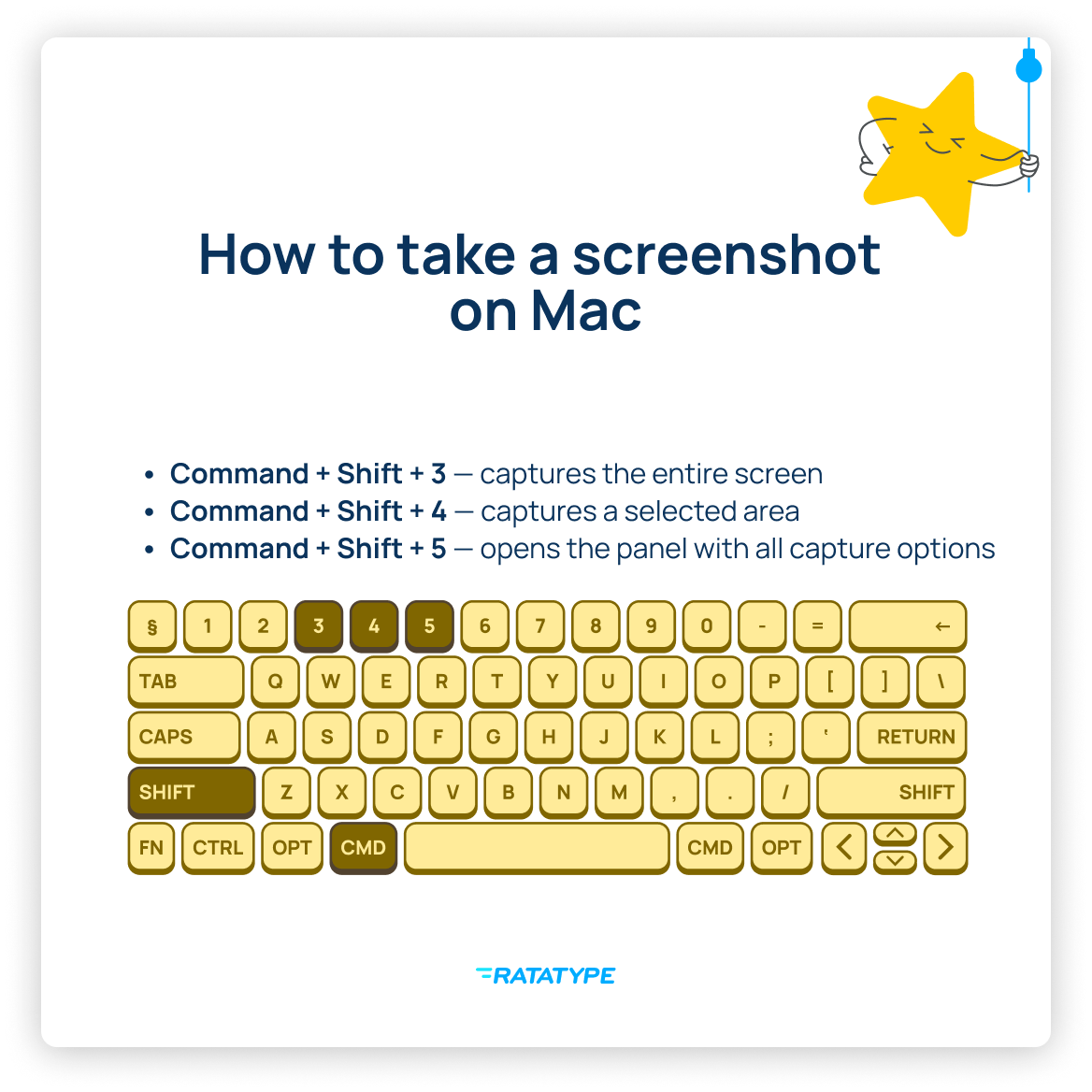
With the Control key:
Tack Control onto any of the combinations above — and rather than saving the image as a file, it'll be copied directly to your clipboard. For instance: Cmd +CTRL +Shift +3. You can then paste it wherever you fancy — into a folder, a chat, or an email.
How to Capture Your Screen on Windows
We've rounded up the most useful keyboard shortcuts for taking screenshots on Windows:
- PrtScn — captures everything on screen and copies it to the clipboard. On newer versions of Windows, it also launches a capture menu with options for region, photo or video, colour detection, and text recognition.
- Win +Shift +S — ideal for keyboards that lack a dedicated PrtSc key; opens the very same capture menu with region selection, photo or video, colour detection, and text recognition.
- Win +Fn +PrtScn — takes a full-screen screenshot and saves it automatically to the «Pictures/Screenshots» folder.

Built-in Programmes:
Snipping Tool — head to Start → «Snipping Tool» to select a region, a window, or your full display, then edit the capture straightaway without opening anything else.
There you have it — capturing your screen really is that straightforward, regardless of which operating system you're on. Care to guess which screenshot we'd most love to see? Yours — specifically your progress results from our keyboard trainer.
So go on, get practising — build up your typing speed until it rivals how fast you can snap a screenshot. Ready? Let's crack on!